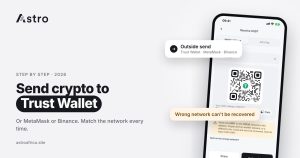
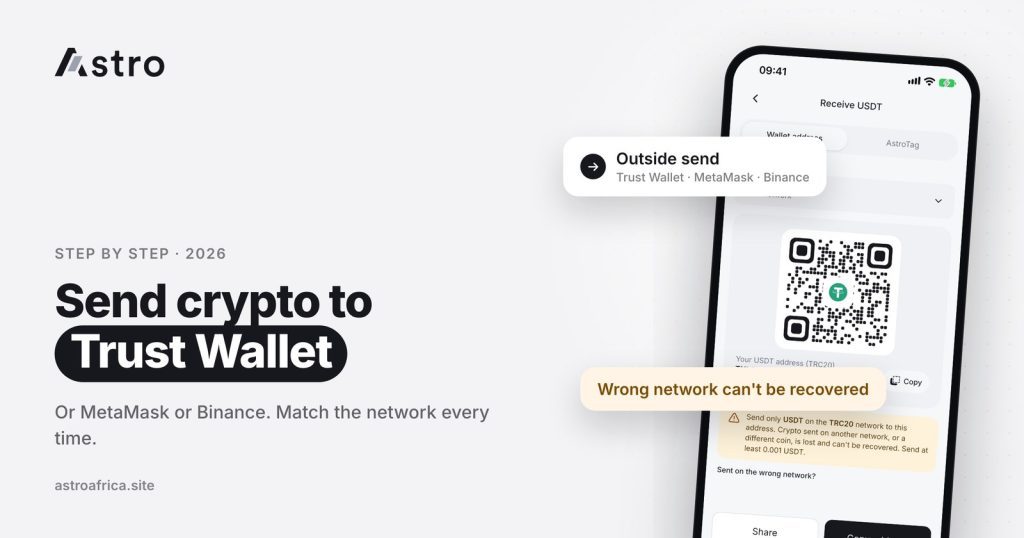
To send crypto from Astro to Trust Wallet, MetaMask or Binance, copy a receiving address from the other wallet for the exact coin and network you want to use, then paste it into Astro’s send screen, pick that same network, check the amount and confirm with your PIN. The one rule that matters most is that the coin and the network must match on both sides, because crypto sent on the wrong network or as a different coin can’t be recovered.
This guide walks through where to find your receiving address in each wallet, how to send from Astro step by step, how to choose a network, and what happens if a transfer fails.
Key points
- Astro lets users send supported crypto to outside wallets and exchanges such as Trust Wallet, MetaMask and Binance.
- Always copy the receiving address for the same coin and the same network you will pick on Astro.
- Crypto sent on the wrong network, or sent as a different coin, cannot be recovered.
- If an outside send fails, the amount and Astro’s fee come back to your Astro wallet.
- To send to another Astro user, Astro Tag is free and needs no address or network.
Before you send: three things to check
Every outside crypto transfer comes down to three details. Get these right and the rest is simple.
- The coin. USDT must go to a USDT address, BTC to a BTC address, and so on. Sending one coin to an address meant for another is one of the most common ways people lose funds.
- The network. Many coins, especially USDT, move on more than one blockchain. On Astro, USDT can be sent on TRC20 (Tron), BEP20 (BNB Smart Chain) and ERC20 (Ethereum). The receiving wallet must support the same network you pick.
- The address. Copy and paste it rather than typing it. After pasting, compare the first and last few characters with the original.
If USDT networks are new to you, read USDT TRC20 vs BEP20 vs ERC20 first. It explains why the same coin can travel on different chains and why the choice matters.
Where to find your receiving address
The address always comes from the wallet that will receive the crypto. Here is where to find it in the three most common destinations.
Trust Wallet
- Open Trust Wallet and tap Receive.
- Search for the coin you want to receive, for example USDT.
- Trust Wallet often lists the same coin on several networks, labelled with the chain name, such as USDT on Tron, BNB Smart Chain or Ethereum. Tap the one that matches the network you will use on Astro.
- Tap Copy to copy the address.
Trust Wallet is a self-custody wallet, which means only you control it through your recovery phrase. Keep that phrase offline and never share it. The guide on what a seed phrase is explains why no genuine support agent will ever ask for it.
MetaMask
- Open MetaMask and make sure the correct network is selected at the top, for example Ethereum or BNB Smart Chain.
- Tap your account name or the Receive option to show your address, then copy it.
MetaMask is built mainly for Ethereum and networks that work like it, such as BNB Smart Chain. Ethereum and BNB Smart Chain addresses both start with “0x” and look identical, so MetaMask will show the same address on both. That makes the network choice on Astro even more important: if you want to receive USDT on BNB Smart Chain, pick BEP20 on Astro; if you want it on Ethereum, pick ERC20. If BNB Smart Chain is not yet added in your MetaMask, add it before sending so you can see the funds when they arrive.
Binance
- Open Binance and go to Wallet, then Deposit, and choose Crypto.
- Select the coin, for example USDT.
- Select the network. Binance lists several, so choose one that Astro also supports for that coin.
- Copy the deposit address. If Binance also shows a memo or tag for that coin and network, read the note below before sending.
Some exchanges ask for a memo or tag on certain coins so they know which account to credit. If the exchange says a memo is required and you can’t include it, don’t send. Choose a network that doesn’t need a memo, or contact the exchange first.
Moving the other way, from Binance into Astro, is covered in how to send USDT from Binance to Astro.
How to send crypto from Astro, step by step
Once you have the receiving address, the transfer itself takes a minute or two inside the Astro app. Menu names can change slightly between app versions, but the flow looks like this:
- Open the coin in your Astro wallet. Tap the coin you want to send, such as USDT or BTC.
- Choose to send to an outside wallet. Pick the option for sending to an external address, not Astro Tag.
- Select the network. Choose the same network as the address you copied. For USDT, that means TRC20, BEP20 or ERC20.
- Paste the address. Paste the address from Trust Wallet, MetaMask or Binance, then check the first and last few characters.
- Enter the amount. The app shows what will be sent and any fee before you confirm. Fees vary by coin and network, so check the figure on screen each time.
- Confirm. Enter your 5-digit transaction PIN or use Face ID. If you have turned on the optional two-step check, enter the code from your authenticator app.
- Track the transfer. While Astro sends the coins, the transfer shows as “Processing”. Once it is on the blockchain, the receiving wallet may show it as pending until enough network confirmations arrive.
For a first transfer to a new address, many users send a small test amount first, wait for it to arrive, then send the rest. It costs an extra network fee, but it confirms that the address and network are right before a large sum moves.
Which network should you choose?
For coins that only travel on one chain, such as BTC, LTC or DOGE, there is usually only one option. The real decision comes with USDT and other tokens that live on several chains.
| Sending to | What to check |
|---|---|
| Trust Wallet | Open the coin on the same network you will use on Astro (for USDT: Tron, BNB Smart Chain or Ethereum) and copy that address. |
| MetaMask | Use BEP20 or ERC20 for USDT, not TRC20. MetaMask does not hold Tron addresses, and a Tron address won’t start with “0x”. |
| Binance | Pick a network Binance lists for that coin and that Astro also supports, and check whether a memo is required. |
Network fees differ between chains and change with demand. Ethereum (ERC20) tends to cost more than Tron or BNB Smart Chain, especially when it is busy. Check the fee in the app before confirming rather than relying on old figures.
The wrong-network warning
This is worth repeating because it is the costliest mistake in crypto: crypto sent on the wrong network, or sent as a different coin, can’t be recovered. Astro can’t reverse a transfer once it is on the blockchain, and neither can the receiving wallet in most cases.
Common ways it happens:
- Copying a Tron address in Trust Wallet but picking BEP20 on the sending side.
- Sending USDT to an ETH or BNB address because it “looked the same”.
- Choosing a network the receiving exchange doesn’t support for that coin.
If this has already happened to you, read what to do if you sent crypto on the wrong network for the steps that are still worth trying.
What happens if a send fails?
Sometimes a transfer doesn’t go through, for example because of a network problem or a rejected address. If an outside send fails, Astro returns the amount and Astro’s fee to your wallet. A failed transfer is different from a wrong-network transfer: a failed send never left for the blockchain in a usable way, while a wrong-network send did arrive somewhere, just not where it can be used.
Two more points help avoid confusion:
- A transfer that is already processing can’t be cancelled, so check everything before you confirm.
- If the receiving wallet doesn’t show the coins yet, check the transaction on a block explorer. It may still be waiting for network confirmations. The guide on crypto deposits that aren’t showing covers the usual reasons.
For how refunds work on cash withdrawals, see what happens when a withdrawal fails on Astro.
Sending to another Astro user? Use Astro Tag instead
If the person you want to pay also uses Astro, there is no need for addresses or networks. Astro Tag sends crypto straight from one Astro wallet to another using the person’s tag. Crypto sends by Astro Tag are free and go to any Astro user, in Nigeria or Ghana. The full walkthrough is in how to send crypto to friends for free with Astro Tag.
Keeping outside sends safe
A crypto transfer can’t be undone, so a few habits protect your funds:
- Turn on the two-step check. Astro offers an optional authenticator-app code on outside crypto sends and Astro Tag crypto sends. It adds a second lock if someone learns your PIN.
- Watch for clipboard malware. Some malicious apps swap a copied address for the scammer’s. Always compare the pasted address with the original.
- Never send to an address from a stranger “agent”. Astro staff won’t ask you to send crypto to a personal wallet to “verify” or “unlock” your account.
- Keep your recovery phrase offline. This applies to Trust Wallet, MetaMask and any other self-custody wallet.
More on how Astro accounts are protected is in account security on Astro. No method removes every risk, but these steps make the most common losses far less likely.
Frequently asked questions
Can I send crypto from Astro to Trust Wallet?
Yes. Copy the receiving address for the right coin and network in Trust Wallet, paste it into Astro’s send screen, pick the same network and confirm with your PIN or Face ID.
Can I send USDT from Astro to MetaMask?
Yes, on a network MetaMask supports, such as BEP20 (BNB Smart Chain) or ERC20 (Ethereum). Don’t use TRC20 for MetaMask, because MetaMask does not hold Tron addresses.
Can I withdraw crypto from Astro to Binance?
Yes. In Binance, go to Deposit, choose the coin and a network Astro also supports, copy the address and paste it into Astro. Check whether Binance asks for a memo for that coin and network.
Which coins can I send from Astro?
Astro supports BTC, USDT, USDC, ETH, BNB, TRX, LTC, DOGE and SOL. The send screen in the app shows which networks are available for each coin.
What happens if I choose the wrong network?
Crypto sent on the wrong network, or sent as a different coin, can’t be recovered. Check the network on both sides before you confirm.
What if my transfer fails?
If an outside send fails, the amount and Astro’s fee are returned to your Astro wallet.
Can I cancel a crypto transfer after confirming it?
No. Once a send is processing, it can’t be cancelled, and once it is on the blockchain it can’t be reversed. Check the address, network and amount first.
How much does it cost to send crypto from Astro?
It depends on the coin and network, and fees change with network demand. The app shows the fee before you confirm, so check it there.
Is it free to send crypto to another Astro user?
Yes. Crypto sends by Astro Tag between Astro users are free and don’t need an address or network.
Who can I contact if something looks wrong?
Reach Astro support through the in-app chat or at [email protected]. Have the transaction details ready, including the network and the transaction hash if there is one.
Sending crypto from Astro to Trust Wallet, MetaMask or Binance is quick once the coin, network and address all match. Download the Astro app to hold, swap, sell or send your crypto from one place.