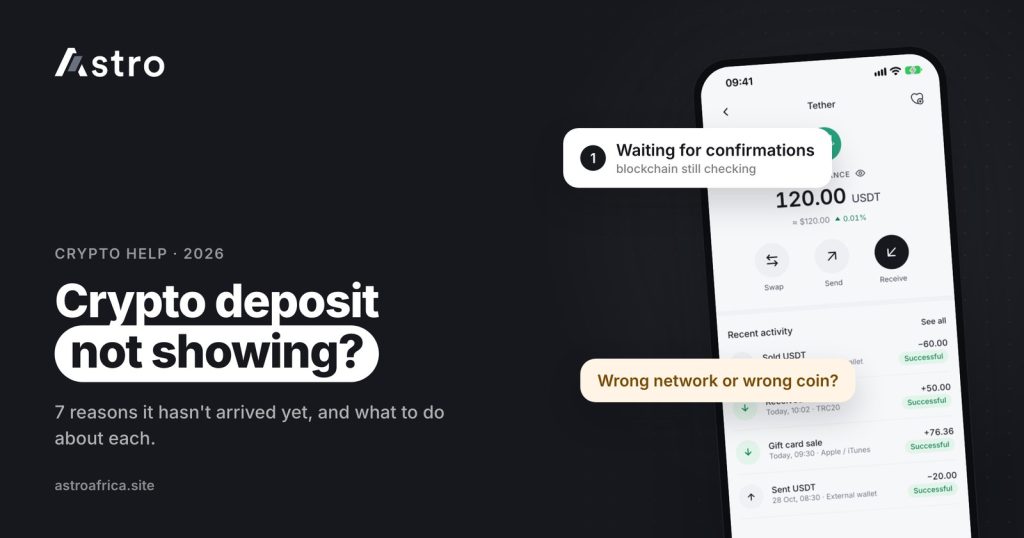
If a crypto deposit is not received in your wallet, the most common reason is that the transaction is still waiting for network confirmations, and it will show once those are complete. If it has been confirmed on the blockchain and still isn’t there, the usual causes are a wrong network, a different coin, a wrong address, or a withdrawal that never actually left the sending app.
This guide covers the seven most common reasons a crypto deposit doesn’t show, how to check where your coins really are using the transaction ID, and what to do next, including what to send Astro support if your deposit into the Astro app is missing.
Key points
- Most “missing” deposits are simply waiting for blockchain confirmations. Busy networks take longer.
- The transaction ID (TxID or hash) is the single most useful thing to have. It shows on a block explorer whether the coins were sent, where, and on which network.
- Crypto sent on the wrong network, or sent as a different coin, can’t be recovered.
- A withdrawal that is still processing or was rejected on the sending app never reached the blockchain, so it can’t arrive.
- If a confirmed deposit to the correct Astro address doesn’t show, contact Astro support in the app with the TxID, coin, network and amount.
First, find your transaction ID
Before going through the reasons, get the transaction ID from the app or wallet you sent from. It may be called TxID, transaction hash or simply “hash”. On most exchanges it appears in the withdrawal history once the transfer has been sent to the blockchain.
Paste the TxID into the block explorer for that network. Common ones are:
- Tronscan for TRX and USDT on TRC20
- BscScan for BNB and tokens on BEP20
- Etherscan for ETH and tokens on ERC20
- Solscan for SOL
- A Bitcoin, Litecoin or Dogecoin explorer for BTC, LTC and DOGE
The explorer will show three things: whether the transaction is confirmed, the address it went to, and the coin or token sent. Those three answers point straight to one of the reasons below. If the explorer says the TxID does not exist on that network, try the explorer for the other networks: that alone often reveals a wrong-network transfer.
7 reasons your crypto deposit is not showing
1. It is still waiting for network confirmations
Every blockchain needs a certain number of confirmations before a deposit is treated as final. Until then, the deposit may not show yet, or it may show as Pending. On Astro, “Pending” is used for exactly this kind of wait: something that depends on the network, not on Astro.
How long this takes depends on the coin and how busy the network is. Bitcoin is usually slower than Tron or BNB Smart Chain, and any network can slow down when it is congested.
What to do: check the explorer. If it shows the transaction as unconfirmed or with only a few confirmations, wait. Sending the same amount again won’t speed it up and only puts more money in transit.
2. It was sent on the wrong network
USDT, USDC and some other coins exist on several networks. If you copied a TRC20 address but the sender chose BEP20, or you copied a BEP20 address and sent on ERC20, the coins went to a place your wallet isn’t watching. BEP20 and ERC20 addresses both start with “0x”, so a sending app may accept the wrong one without warning.
What to do: compare the network on the explorer with the network you selected when you copied the deposit address. Crypto sent on the wrong network can’t be recovered, so read sent crypto on the wrong network: what happens and how to avoid it for the full picture before you contact anyone.
3. A different coin was sent to the address
Each wallet address in the app is for one coin. Sending USDC to a USDT address, or ETH to a BNB address, means the deposit won’t show as the coin you expected. Coins that look alike on the same network are a common trap.
What to do: check the token name on the explorer. Crypto sent as a different coin can’t be recovered, so always copy the address from the exact coin’s wallet page before sending.
4. The address was wrong
One wrong character, an old saved address, or an address from the wrong wallet sends the coins somewhere else. Clipboard malware can also swap a copied address for a scammer’s address, and fake “support” accounts sometimes send their own addresses in DMs.
What to do: compare the “to” address on the explorer with the address in your receiving wallet, character by character. If they don’t match, the coins went to another wallet. Blockchain transfers can’t be reversed, so the only hope is that the address belongs to someone you can reach. For safety tips, see how to protect your crypto wallet from scammers.
5. The sending app hasn’t actually sent it
Exchanges often review withdrawals before sending them. A withdrawal marked as processing, under review or awaiting verification has not reached the blockchain yet, so there is no TxID and nothing for your wallet to receive. Some withdrawals are rejected or cancelled by the exchange, and the funds go back to your balance there.
What to do: open the withdrawal history on the sending app. If there is no TxID, the problem is on the sending side, and their support team is the right one to contact.
6. The network is congested or the fee was too low
When a network is very busy, transactions can sit unconfirmed for longer than usual. On networks such as Bitcoin and Ethereum, a transaction sent with a low fee from a self-custody wallet can wait a long time before it is picked up.
What to do: check the explorer. If the transaction is unconfirmed, it hasn’t failed yet. Some wallets let you speed up a stuck transaction by raising the fee; otherwise you wait for the network to clear.
7. You are looking in the wrong place
Sometimes the deposit has arrived, but not where you are looking. USDT shows in the USDT wallet, not the Bitcoin wallet. The home screen total may take a moment to refresh. An outdated app version can also show stale information.
What to do: open the specific coin’s wallet and its transaction history, pull down to refresh, and make sure the app is up to date from the App Store or Google Play.
Quick checklist: what the explorer is telling you
| What the explorer shows | Likely reason | Next step |
|---|---|---|
| No transaction found on any network | Not sent yet, or wrong TxID | Check the sending app’s withdrawal history |
| Unconfirmed or few confirmations | Waiting for confirmations or congestion | Wait; don’t send again |
| Confirmed, but on a different network | Wrong network | Read the wrong-network guide; contact support with details |
| Confirmed, but a different token | Different coin sent | Contact support with details; recovery isn’t possible |
| Confirmed, but “to” address doesn’t match | Wrong address | The coins went to another wallet |
| Confirmed, correct address, network and coin | Display delay or account issue | Refresh, then contact Astro support with the TxID |
What to do if your deposit to Astro is missing
If the explorer shows the deposit is confirmed, sent to your Astro address, on the right network and as the right coin, and it still doesn’t show in your Astro wallet after refreshing, contact Astro support through the chat in the app or at [email protected]. Include:
- The coin and the network (for example, USDT on TRC20)
- The amount sent
- The transaction ID (TxID or hash)
- The deposit address you sent to
- A screenshot of the withdrawal on the sending app
Having all of this ready helps the team check the deposit quickly. Astro support will never ask for your 5-digit transaction PIN, your password or your authenticator code. Anyone who does is not Astro.
How to avoid deposit problems next time
- Open the receiving wallet first, choose the coin and network there, and copy that exact address.
- Select the same coin and the same network on the sending app.
- Check the first and last few characters of the pasted address.
- For a large amount, send a small test first and wait for it to arrive.
- Keep the TxID until the deposit shows in your wallet.
Astro supports BTC, USDT, USDC, ETH, BNB, TRX, LTC, DOGE and SOL. For USDT, TRC20, BEP20 and ERC20 are supported; choose the network in the app before copying your address. Signing up doesn’t require ID, and crypto deposits, trading and crypto withdrawals don’t need ID verification. If you are new to receiving coins, the guide on how to generate your personal crypto wallet on Astro shows where to find each address, and how to send Bitcoin to your Astro wallet walks through a full transfer.
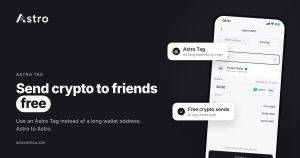
To move crypto to another Astro user, Astro Tag is a simpler option: crypto sends by Astro Tag are free and don’t involve choosing a blockchain network.
Once your deposit arrives
When your coins show in your Astro wallet, you can hold them, swap them for another supported coin, or sell them. Nigerian users can sell for naira and withdraw to a Nigerian bank account, including OPay and PalmPay; eligible payouts can arrive in as fast as 60 seconds under normal conditions, though banks and maintenance can affect timing. Ghanaian users can sell for cedis and withdraw to mobile money (MTN MoMo, Telecel Cash or AirtelTigo Money); Ghana withdrawals are processed by the Astro team, so timing varies. See how to sell USDT in Nigeria or how to sell USDT in Ghana for the steps.
Frequently asked questions
Why is my crypto deposit not showing?
Most often it is still waiting for network confirmations. Other common reasons are a wrong network, a different coin, a wrong address, or a withdrawal that the sending app hasn’t sent yet. The transaction ID on a block explorer tells you which one it is.
How long does a crypto deposit take to arrive?
It depends on the coin and how busy the network is. Some networks confirm quickly, while Bitcoin and congested networks can take longer. A deposit appears once the required confirmations are complete.
What does “Pending” mean on a crypto deposit?
On Astro, “Pending” means the deposit is waiting on something outside Astro, usually blockchain confirmations. It should update once the network confirms the transaction.
Where do I find my transaction ID?
In the withdrawal or transaction history of the app you sent from. It may be labelled TxID, transaction hash or hash. If there is no TxID, the transfer hasn’t been sent to the blockchain yet.
Can I get back crypto sent on the wrong network?
No. Crypto sent on the wrong network, or sent as a different coin, can’t be recovered. Always match the network on both the sending and receiving sides.
I sent crypto to the wrong address. Can Astro reverse it?
No. Blockchain transfers can’t be reversed by anyone once confirmed. If the address belongs to someone you know, contacting them is the only way to get the coins back.
My deposit is confirmed on the explorer but not in my Astro wallet. What should I do?
Open the coin’s wallet, refresh, and check the app is up to date. If it still isn’t there, contact Astro support in the app with the coin, network, amount, TxID and deposit address.
Should I send the deposit again if it hasn’t arrived?
No. Check the explorer first. Sending again won’t speed up the first transfer, and if the problem is a wrong address or network, the second transfer would be lost too.
Do I need KYC to receive crypto on Astro?
No. Sign-up doesn’t ask for ID, and crypto deposits, trading and crypto withdrawals don’t need ID verification. Some other features, such as Nigerian bank accounts, do require verification.
Will Astro support ask for my PIN to check a deposit?
Never. Astro support only needs the transaction details. Don’t share your PIN, password or authenticator code with anyone, including people claiming to be Astro staff.
A missing deposit is stressful, but a few minutes with the transaction ID usually shows exactly what happened. To receive, hold and sell crypto with the right address for every coin and network, download the Astro app.