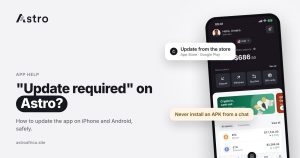
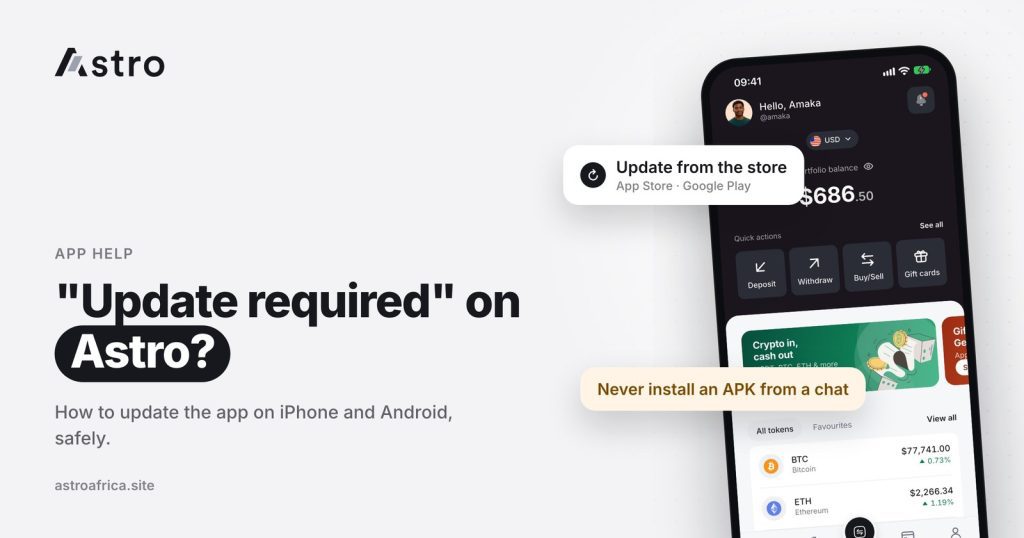
If the Astro Africa app is not working and you see a message asking you to update when you try to sign in, you are most likely using the old version of the app. Astro has replaced the old app (version 3.x) with a new one, and the old version can no longer sign in, so the fix is to update Astro from the App Store or Google Play.
This guide explains why the update message appears, how to update on iPhone and Android step by step, what to do if the store won’t show the update, and why you should never install Astro from an APK file someone sends you.
Key points
- The old Astro app (version 3.x) is blocked at sign-in and shows a message asking you to update.
- Update only from the Apple App Store or Google Play. The safe link is astroafrica.site/get, which sends you to the right store for your phone.
- Astro never sends APK files by WhatsApp, Telegram, email or DM. An APK from anyone else could be a fake app built to steal your account.
- Your account stays the same. You sign in to the new app with your existing details.
- If something still isn’t working after you update, contact support through the in-app chat or at [email protected].
Why the Astro app is asking you to update
Astro has rebuilt its mobile app. The new version brings a refreshed design and runs on updated systems behind the scenes. Keeping two very different versions running at the same time would leave customers on the old app with outdated screens and features, so the old version has been switched off for sign-in.
Here is what that looks like in practice:
- When you try to sign in or sign up on the old app, you see a message telling you to update the app instead of being taken to your account.
- If the old app is still open on your phone, you may also see a pop-up asking you to update.
Nothing is wrong with your account. The message simply means the version installed on your phone is too old. Once you install the new version from the official store, you can sign in as normal.
How to update Astro on iPhone
- On your iPhone, open Safari and go to astroafrica.site/get. It opens the official Astro page in the App Store.
- Tap Update. If you see Get or a cloud icon instead, tap it to download the app.
- Wait for the download to finish, then open Astro.
- Sign in with your usual details.
You can also update from inside the App Store: tap your profile picture at the top right, scroll down to see pending updates, and tap Update next to Astro. If it doesn’t appear, pull down on that screen to refresh the list.
How to update Astro on Android
- On your Android phone, open Chrome and go to astroafrica.site/get. It opens the official Astro page on Google Play.
- Tap Update. If you see Install, tap it to download the app.
- Wait for the download to finish, then tap Open.
- Sign in with your usual details.
You can also update from inside Google Play: tap your profile picture at the top right, choose Manage apps & device, then Updates available, and tap Update next to Astro. Menu names can differ slightly between phones and Play Store versions.
Never install Astro from an APK file
An APK is an Android app file that can be installed outside Google Play. Scammers often use the moment when an app asks people to update. They post messages such as “new Astro update, download here” in WhatsApp groups, Telegram channels, comments and DMs, with a link to an APK file.
These files can be fake apps that look like Astro but are built to capture your sign-in details, PIN or two-step codes, or to take control of your phone. Once someone has those, they can try to empty your wallet.
Follow these rules every time:
- Astro does not send APK links. Not by WhatsApp, Telegram, SMS, email or social media DM.
- Only install from the App Store or Google Play, using astroafrica.site/get or by searching inside the official store.
- Don’t turn on “install unknown apps” for any file someone sends you about Astro.
- Don’t trust “update agents” who offer to update the app for you, unlock your account or move your balance.
- If you already installed an APK from someone else, delete it, install the official app from the store, change your password, and contact Astro support straight away.
The guide to fake Astro apps, pages and agents explains how to spot impostors, and how to check any crypto app before you trade covers what to look for in an app listing.
What happens to your account and balance
Updating the app doesn’t create a new account. Your wallet, balances and transaction history are stored with your Astro account, not inside the old app on your phone, so they are there when you sign in to the new version.
After you update:
- Sign in with the same login details you used before.
- You may be asked to set up or confirm some security settings on the new app, such as Face ID.
- Your 5-digit transaction PIN is still needed to confirm payments. Never share it with anyone.
- If you turned on the optional two-step check with an authenticator app, keep that app on your phone. You will need it for outside crypto sends and Astro Tag crypto sends.
The guide to account security on Astro explains the PIN, Face ID and two-step check in more detail.
The store won’t show an update: what to try
Most people can update in under a minute. If the store isn’t showing the new version, try these steps in order.
1. Refresh the store
Close the App Store or Google Play fully, then open it again. On iPhone, pull down on the updates list to refresh. On Android, open the Updates available screen again after a few seconds.
2. Search for Astro directly
Instead of waiting for the updates list, open astroafrica.site/get or search for Astro inside the official store. Check that the developer name and app details match the app you already use before tapping Update.
3. Check your storage and internet
The new app needs free space to download. If your phone is nearly full, delete some photos, videos or unused apps first. A weak or unstable connection can also stop a download, so switch between Wi-Fi and mobile data if needed.
4. Check your phone’s software
If the store says the app isn’t compatible with your device, your phone’s software may be too old. Update your iPhone’s iOS or your Android version in your phone’s settings, then try again.
5. Delete and reinstall
If the update still won’t install, you can delete the old Astro app and install it fresh from the official store. Your account and balance are not stored in the app itself, so deleting the app does not delete your account. Make sure you know your sign-in details before you do this.
6. Use Astro on a computer while you sort out your phone
Astro also has a web app at app.astroafrica.site, which you can open in a browser. Type the address yourself rather than following a link someone sends you.
Still not working after the update?
If you have the new app but something still isn’t right, it may be a different problem. Common examples:
- A deposit isn’t showing. Crypto deposits need network confirmations first. See crypto deposit not showing in your wallet.
- A trade or withdrawal shows “Processing”. It is still in progress. See “Processing” vs “Pending” on Astro.
- A withdrawal failed. The amount and the fee are refunded to your wallet. See withdrawal failed? what happens to your money.
- The app shows an error or won’t load. Check your internet connection, close and reopen the app, and make sure you are on the latest version.
If none of these help, contact Astro support through the chat in the app or by email at [email protected]. Describe what you see, add a screenshot, and mention your phone type. If the old app won’t let you sign in, email is the easiest way to reach the team until you have updated. The customer care guide lists the official ways to get help. Astro support will never ask for your password, PIN or two-step code.
Frequently asked questions
Why is my Astro Africa app not working?
If you see a message asking you to update when you try to sign in, you are using the old app (version 3.x), which can no longer sign in. Update Astro from the App Store or Google Play to fix it.
Where should I download the new Astro app?
Only from the Apple App Store or Google Play. Go to astroafrica.site/get on your phone and it will open the right store page for you.
Does Astro send APK files to update the app?
No. Astro does not send APK files or download links by WhatsApp, Telegram, SMS, email or DM. Treat any such message as a scam.
Will I lose my balance if I update?
No. Your balance and transaction history are tied to your Astro account, not the app on your phone. Sign in to the new app with your usual details and they will be there.
Do I need to create a new account on the new app?
No. Use the same sign-in details as before. Creating a second account isn’t needed.
Can I delete the old app and install the new one?
Yes. Deleting the app doesn’t delete your Astro account. Make sure you know your sign-in details, then install the app again from the official store.
The store says the app isn’t compatible with my phone. What can I do?
Update your phone’s software and try again. You can also use Astro in a browser at app.astroafrica.site while you sort it out.
I installed an Astro APK someone sent me. What should I do?
Delete it straight away, install the official app from the App Store or Google Play, change your password, and contact Astro support through the in-app chat or [email protected].
Can I turn on automatic updates?
Yes. Both the App Store and Google Play let you turn on automatic app updates in their settings. This helps you stay on the latest version without having to check.
How do I contact Astro if the app still isn’t working?
Use the chat inside the app, or email [email protected] with a description and a screenshot. Support will never ask for your password, PIN or two-step code.
An update message on Astro isn’t a problem with your account. It means it’s time to move to the new app. To update safely, download the Astro app from the official App Store or Google Play page, sign in with your usual details, and carry on trading.